



Enhanced tracking capabilities for your Direct Site

  • September 2, 2025
  • 5 replies
  • 724 views

Aron Rotteveel
Hospitable Team Member
Forum|alt.badge.img+2

Hi there, Aron here from the Direct engineering team 👋

We recently made some improvements to our Direct tracking capabilities.

What's new:

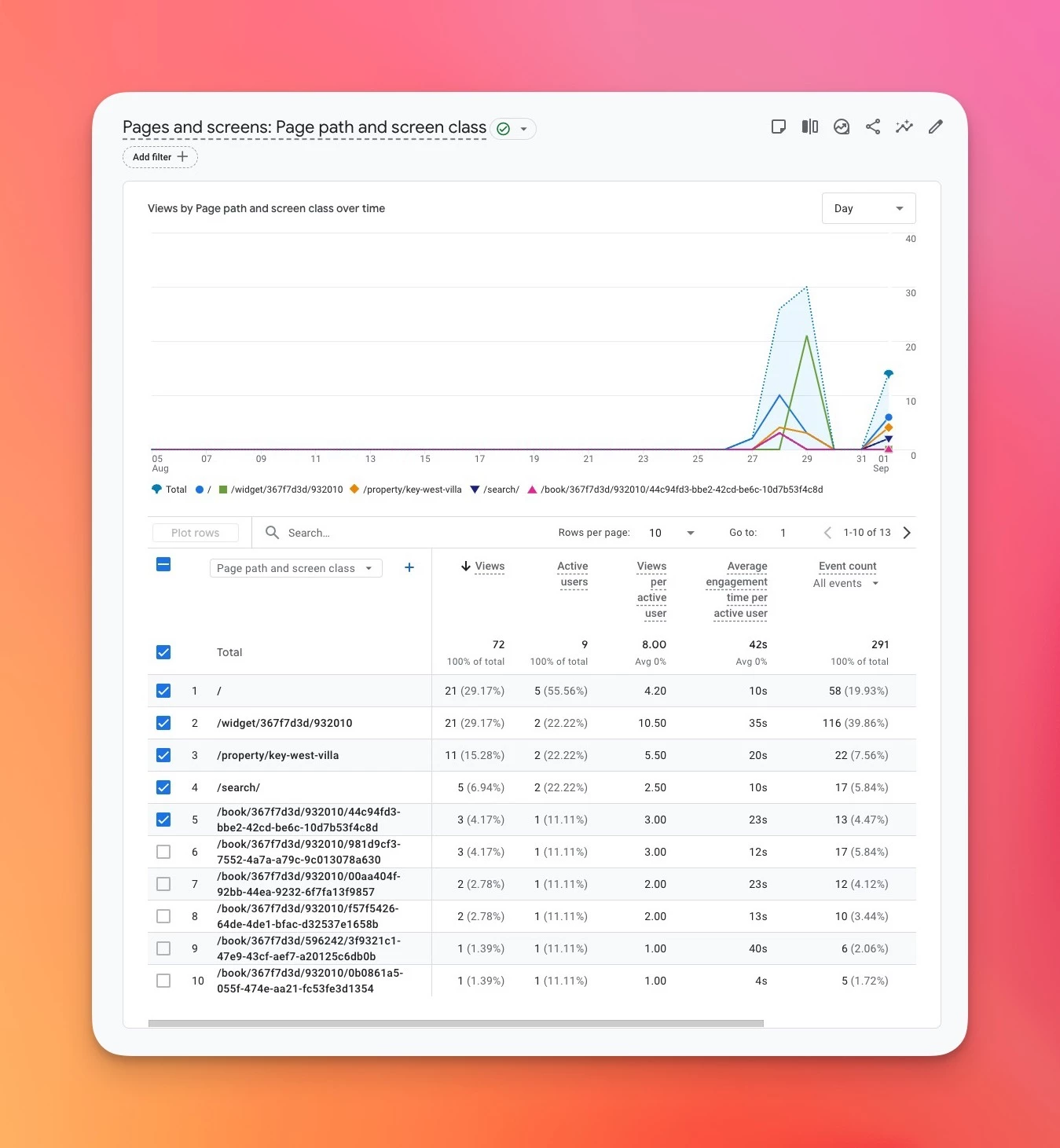
We've enhanced our Google Analytics integration to give you much better visibility into your booking performance. Previously, you could see website visits, but we couldn't track what happened once guests started interacting with your booking widget.

Now you can see the complete picture:

  • When guests view your property details
  • When they select dates and see pricing
  • When they start the booking process
  • When they reach the payment stage
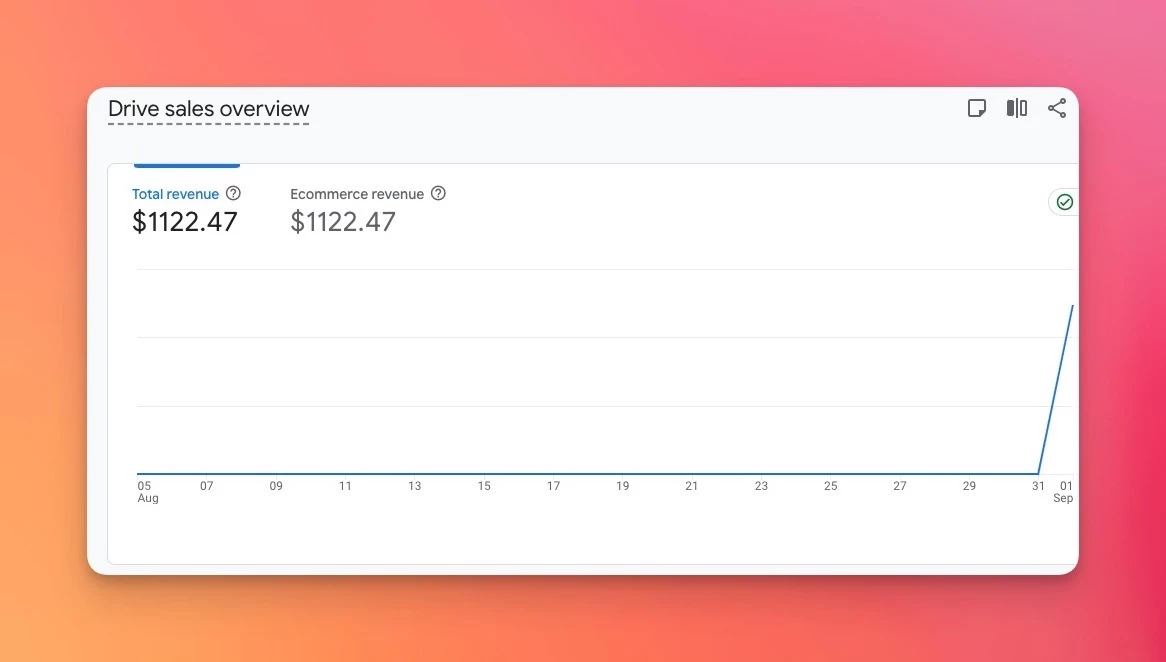
  • When they complete their booking (with exact revenue amounts)

What this means for you:

  • Better ROI tracking - See which marketing campaigns actually drive bookings, not just website visits
  • Funnel optimization - Identify exactly where potential guests drop off in your booking flow
  • Revenue insights - Track booking values and conversion rates in Google Analytics
  • Accurate attribution - Bookings are properly credited to your Google Ads, social media, or other marketing sources

Getting started:

If you're on a Hospitable-hosted site, this works automatically with your existing Google Analytics setup.

If you have a custom domain, you'll need to add booking.hospitable.com to your Google Analytics cross-domain tracking settings to get the full benefits. Full documentation of this feature can be found here.

Questions? Feel free to reach out to us through our support team. We’re here to help you get the most out of your Direct site and would love to help.
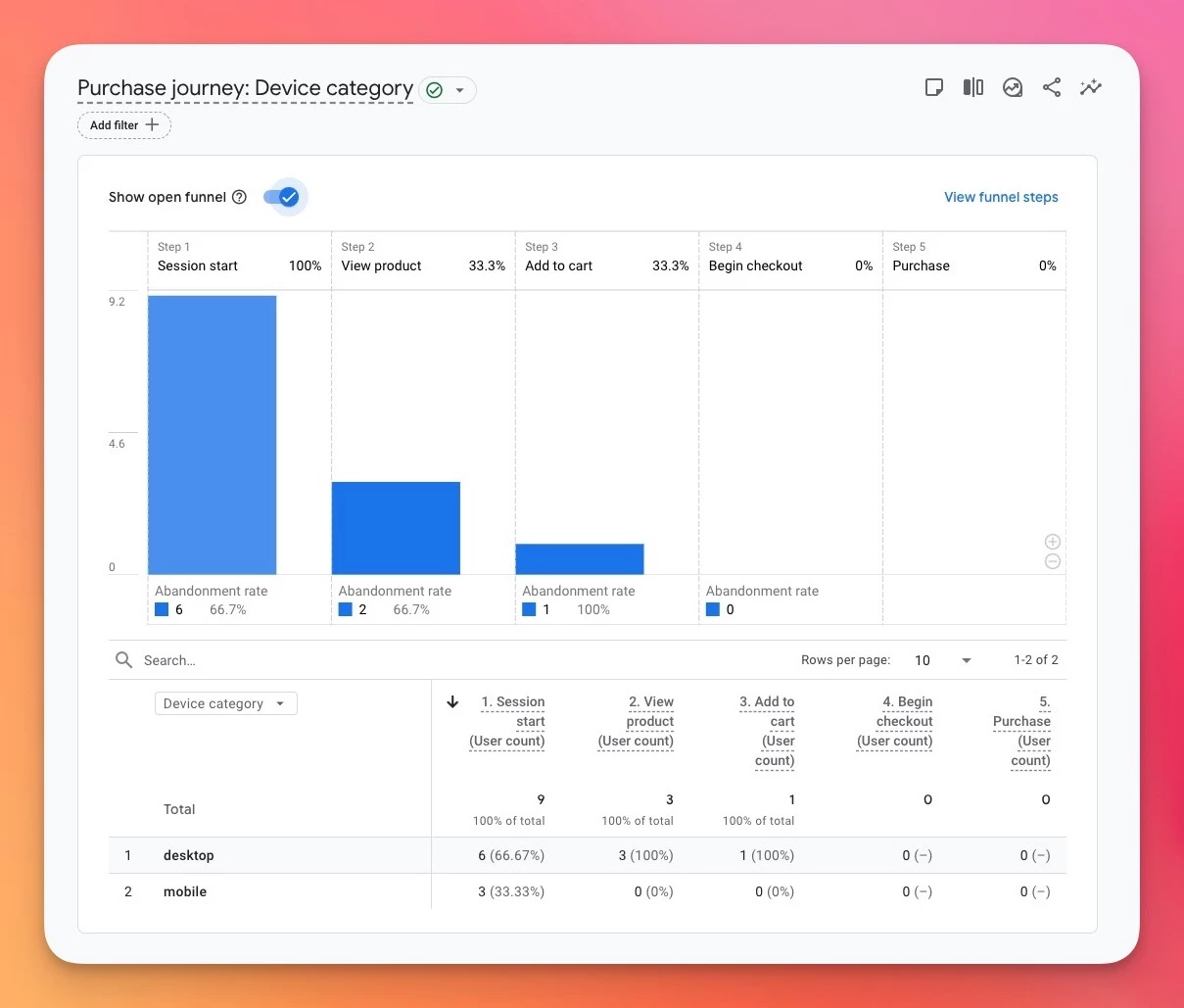
Google Analytics will now automatically map your user’s entire journey
Revenue from bookings will now automatically be tracked. Note: this does not take into account eventual cancellations.
We now track all interactions and pages, even if they don’t happen outside of your site.


5 replies

anthonyrallo
Top Contributor
Forum|alt.badge.img+3
  • Top Contributor
  • September 4, 2025

Available for widgets?


Aron Rotteveel
Hospitable Team Member
Forum|alt.badge.img+2
  • Author
  • Hospitable Team Member
  • September 6, 2025

Hi ​@anthonyrallo ,


Yes, if you add any of these trackers, they will automatically load in the Booking widget as well.


Alex 66
Known Participant
Forum|alt.badge.img+1
  • Known Participant
  • May 2, 2026

hi. the documentation page doesnt work anymore. How do we start tracking bookings on an external site like Crafted Stays? I want to connect conversion data to google ads/analytics


kyleraney
New Participant
  • New Participant
  • May 6, 2026

I’m seeing the same thing and having issues tracking anything along Purchase Journey in Google Analytics. 

hi. the documentation page doesnt work anymore. How do we start tracking bookings on an external site like Crafted Stays? I want to connect conversion data to google ads/analytics


obaaid
New Participant
Forum|alt.badge.img
  • New Participant
  • May 14, 2026

Setting Up Google Tag Manager on a Hospitable Direct Site
Sharing this in case it’s useful for anyone else running a Hospitable Direct site who wants proper tracking. This setup gives you GA4 analytics, Google Ads conversion tracking, and the flexibility to add Meta Pixel, Microsoft Clarity, or any other tag later — all from one GTM container.
What you’ll end up with
One GTM container injected into your Hospitable Direct site that:
    •    Loads your Google tag (gtag) on every page
    •    Sends GA4 ecommerce events (view_item, add_to_cart, begin_checkout, purchase, etc.) automatically from Hospitable’s data layer
    •    Feeds both GA4 (for analytics) and Google Ads (for conversion tracking) from a single setup
    •    Handles cross-domain measurement between your custom domain and booking.hospitable.com automatically
Prerequisites
    •    A published Hospitable Direct site
    •    A Google account
    •    About 30 minutes

Step 1: Create your Google Analytics 4 property
    1.    Go to analytics.google.com → Admin (gear icon) → Create → Property
    2.    Name it after your property, set timezone and currency
    3.    When prompted for a platform, choose Web and enter your Hospitable Direct domain
    4.    Note down two things from the resulting Data Stream:
    •    Measurement ID (looks like G-XXXXXXXXXX)
    •    Stream ID (a long number)
Leave Enhanced Measurement turned on.
Step 2: Create your GTM container
    1.    Go to tagmanager.google.com → Create Account
    2.    Account name: your business name. Container name: your domain. Target platform: Web
    3.    Accept the terms. You’ll land on the workspace.
    4.    Note down your GTM Container ID (top right, looks like GTM-XXXXXXXX)
    5.    Skip the install code dialog — Hospitable handles injection for you.
Step 3: Connect GTM to Hospitable Direct
    1.    In Hospitable, go to your Direct site → Marketing tab
    2.    Under Google, select the Google Tag Manager radio option (not Google Analytics)
    3.    Paste your GTM Container ID (GTM-XXXXXXXX) into the field
    4.    Click Save, then Publish your Direct site so the change goes live
Hospitable will now inject the GTM snippet into every page of your direct booking site, including the checkout flow on booking.hospitable.com. Cross-domain measurement is handled automatically.
Step 4: Create your Google Tag in GTM
This is the base tag that loads gtag.js on every page. It powers both GA4 and any Google Ads conversions you add later.
    1.    In GTM → Tags → New
    2.    Name it G4 (or Google Tag)
    3.    Tag Configuration → choose Google Tag
    4.    Tag ID: enter a Google Tag ID. The simplest path is to use the GT- ID auto-created by your GA4 property. To find it: go back to GA4 → Admin → Data Streams → click your stream → scroll to “Google tag” → “Configure tag settings” → copy the GT-XXXXXXXXX ID. Paste this in.
(You can use your GA4 G- Measurement ID here instead, but the GT- ID is preferred because it can drive multiple destinations like Google Ads from one tag.)
    5.    Triggering → choose Initialization – All Pages
    6.    Save
Step 5: Create the ecommerce events tag
Hospitable’s checkout flow pushes standard GA4 ecommerce events to the data layer. You need a tag to forward them to GA4.
    1.    In GTM → Tags → New
    2.    Name it GA4 - Ecommerce Events
    3.    Tag Configuration → choose Google Analytics: GA4 Event
    4.    Measurement ID: paste your G-XXXXXXXXXX from Step 1
    5.    Event Name: enter {{Event}} (this uses the built-in Event variable so the tag forwards whatever event name fires)
    6.    Expand the Ecommerce section → tick Send Ecommerce data
    7.    Data source: Data Layer
    8.    Save the tag configuration (don’t add triggering yet — next step)
Step 6: Create the custom event trigger
    1.    While still editing the tag, scroll to Triggering → click to add a trigger → + in top right to create new
    2.    Name it Custom Event
    3.    Trigger Type → Custom Event
    4.    Event name (paste this exact regex):

purchase|view_item|view_item_list|select_item|add_to_cart|remove_from_cart|view_cart|begin_checkout|add_shipping_info|add_payment_info


    5.    Tick Use regex matching
    6.    This trigger fires on: All Custom Events
    7.    Save the trigger, then save the tag
Step 7: Enable the built-in Event variable
The {{Event}} reference in Step 5 needs the built-in variable enabled.
    1.    In GTM → Variables → under “Built-In Variables” click Configure
    2.    Tick Event (under the Utilities section)
    3.    Close
Step 8: Submit and publish
    1.    Top right → Submit
    2.    Version name: “Initial GTM setup” or similar
    3.    Publish
Your container is now live. The Live Version card on the GTM overview should turn green.
Step 9: Verify it’s working
    1.    Open your Direct site in a fresh browser tab
    2.    Click into a property, hit the Book button, get to the checkout page (don’t complete a real booking)
    3.    In GA4 → Reports → Realtime, you should see yourself as an active user and events firing: page_view, view_item, add_to_cart, begin_checkout
    4.    If you see nothing after 60 seconds, check:
    •    Hospitable Direct site is published (not draft)
    •    GTM container is published (not just saved as a workspace change)
    •    You’re not using an ad blocker
Optional Step 10: Add Google Ads conversion tracking
Once GTM and GA4 are working, you can wire up Google Ads conversions without writing any extra tags.
    1.    In Google Ads → Tools → Conversions → + New conversion action → Import → Google Analytics 4 properties
    2.    Select your GA4 property and tick the purchase event
    3.    Import. Your purchase event now flows through to Google Ads as a conversion automatically — the GT- tag you set up in Step 4 carries the data across.
You can also link the GT- tag to a Google Ads destination directly in GA4 → Admin → Data Streams → Configure tag settings → Manage connected site tags / destinations.
Optional Step 11: Mark only purchase as a key event in GA4
By default GA4 may mark several events as key events, which inflates your “key events” count and makes reporting confusing. To clean this up:
    1.    GA4 → Admin → Events
    2.    Find the “Mark as key event” column
    3.    Turn the toggle on for purchase only
    4.    Turn it off for view_item, add_to_cart, begin_checkout, etc.
Now your key event count = actual bookings, which is what you want for revenue reporting and Google Ads optimization.

What you can do next
With GTM in place, adding more tracking is easy. You just create new tags in the same container — no developer needed, no Hospitable changes needed. Common additions:
    •    Meta Pixel for Facebook/Instagram ad retargeting
    •    Microsoft Clarity for heatmaps and session recordings
    •    Bing/Microsoft Ads conversion tracking
    •    TikTok Pixel if you advertise there
All of them work the same way: new tag in GTM, point it at the right trigger (often the same Custom Event trigger from Step 6), submit, publish.
Hope this helps someone — happy to answer questions if anyone gets stuck.​​​​​​​​​